PrimeOne Series - RK3568
PrimeOne devices are Google-certified and therefore support Google Device Management directly from the StartWizard. For integrators, there is also an uncertified, open, and rooted firmware version available. The current firmware version now includes an OTA update feature. If an update is available, it can be downloaded under Settings/System/Update.
TeamViewer Host APK## Download
AutoPowerPlan app for automatic startup and shutdown: Download
The final Android 15 beta is now available for testing
MDM is not yet functional. This issue is known and is not being addressed. We are working to resolve this issue in an upcoming update.
Unfortunately, on Rockchip devices, the Android version cannot be updated via OTA. This must be done using a PC. Doing so will result in the loss of all data on the tablet. However, you can back up your data to Google Cloud. Important! In the RKDEV tool, you must select "Erase ALL" under Advanced Functions. Then unplug the USB cable and plug it back in. The device will then appear as a Maskrom device!
Android 15 Firmware Beta May 18, 2026:
- 10 inches - 215110 - Firmware Download Link
- 12 inches - 219234 - Firmware Download Link
- 14 inches - 218414 - Firmware Download Link
- 15 inches - 219236 - Firmware Download Link
- 18 inches - 219232 - Firmware Download Link
- 21 inches - 219233 - Firmware Download Link
Android 13 Firmware:
- 10 inches - 215110 - Firmware Download Link
- 12 inches - 219234 - Firmware Download Link
- 14 inches - 218414 - Firmware Download Link
- 15 inches - 219236 - Firmware Download Link
- 18 inches - 219232 - Firmware Download Link
- 21 inches - 219233 - Firmware Download Link
Firmware with root privileges includes the letters "CTM" in its name.
Link to the complete firmware directory: https://fileshare.allnet.de/s/7oUV1XNFiEsrW69
COC/CE Declaration of Conformity & Test Report: Download
Factory Reset/Recovery Mode
Use a paper clip to press the reset button next to the USB port while simultaneously turning on the power. Hold the button down for about 4–5 seconds until the recovery menu appears. Press the reset button to select the desired option. Press the power button to confirm your selection.
Linux Firmware
10-inch Debian 11: Download
12/14/15-inch Debian 11: Download
18/21-inch Debian 11: Download
Firmware Update Instructions:
OTA Update App: If the update function or the download button in Android isn't working, please install this app:## Download. Please install this app if you're using an older firmware version (prior to 2026). The firmware update will then be much faster.
Firmware Update Instructions: Download
ADB Driver Program DriverAssistant_v5.12: Download
Flash Software RKDevTool 3.13: Download
Important! To perform a complete clean install—for example, when switching from Android to Linux or vice versa—you must click the "Erase All" button under the "Advanced Functions" tab. The device will then boot as a Maskrom device. The same applies when changing the Android version—for example, from Android 11 to Android 13.
Step-by-Step Instructions: Download the Driver Assistant and the RKDev Tools from our file-sharing site. Both must then be unzipped.
- Install the "Release_DriverAssistant." After installation, the PC will recognize the display. If ADB drivers are already installed on the device, the tablet may not be recognized. Please uninstall these ADB drivers first. Download the Driver Assistant and the RKDev Tools from our file share. Both must then be extracted. 2. Start the RKDev Tool
- First, connect the blue outer USB-A port next to the power jack to the PC.
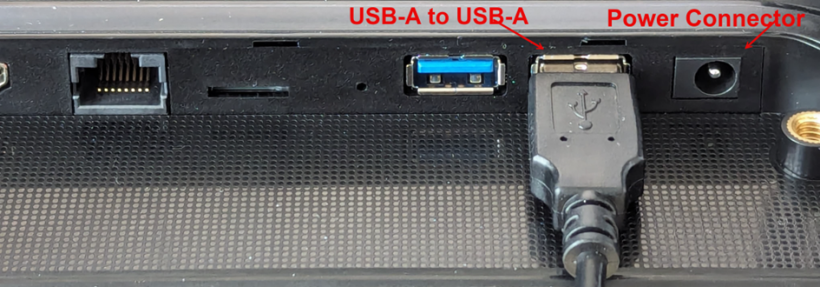
To flash the device, you must now enter loader mode
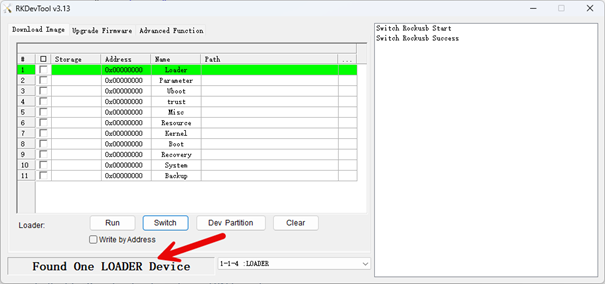
There are several ways to enter loader mode.
First method: On the 10- and 12-inch displays, you can easily enter Loader Mode by pressing the VOL+ button and the Power button at the same time. To do this, press both buttons simultaneously, turn on the power, and hold them down for about 3–5 seconds. RKDevTool must be running beforehand. The Loader Device should then appear there.
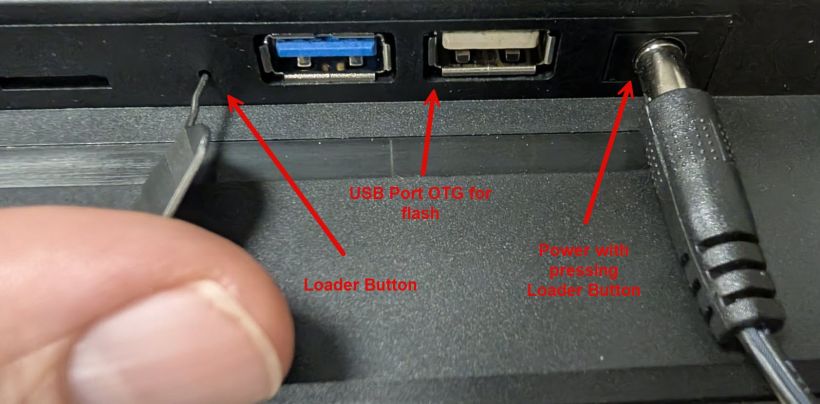
Second method: This works with all Rockchip motherboards.
You'll need a paper clip or a reset pin. To do this, press the button with the paper clip and plug in the power cord. This small hole is usually located on the side of the motherboard, just like on other devices.
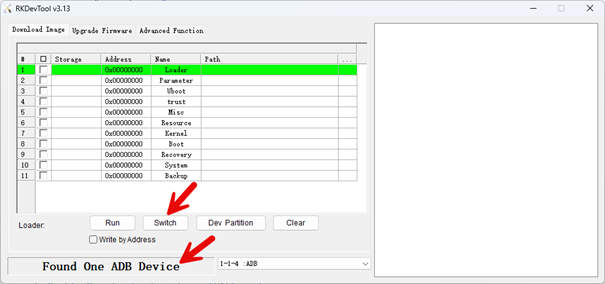
Option 3: If the device boots normally
When the tablet boots up and an ADB device is detected, press the "Switch" button in RkDevTool. The tablet will then reboot into loader mode, and the display will remain off or show the boot screen.
Select and Flash Firmware
To do this, click the "Upgrade Firmware" tab and then the "Firmware" button. Select the firmware.
The firmware filename must not contain "OTA" and must be extracted. The file is a *.img file.
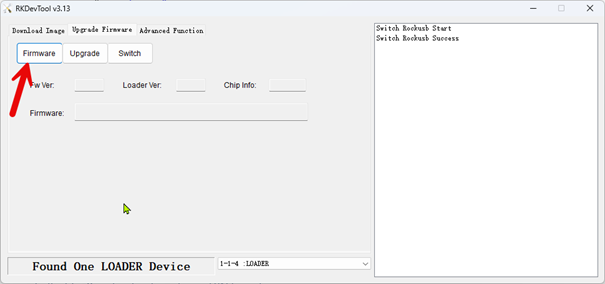
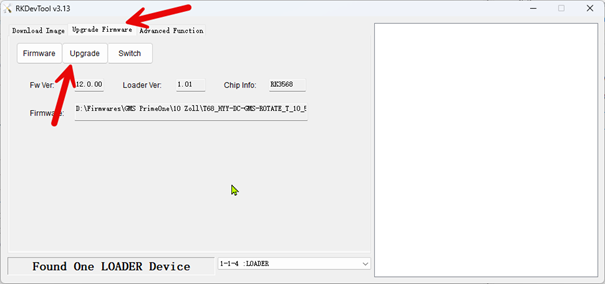
Once the firmware has been selected, all you have to do is click "Upgrade." The download progress is displayed on the right side. After the installation is complete, the device will restart.
Important! To perform a complete clean install—for example, when switching from Android to Linux or vice versa—you must click the "Erase All" button under the "Advanced Functions" tab. The device will then boot as a Maskrom device. The same applies when changing the Android version—for example, from Android 11 to Android 13.