RK3288 Design Tablets
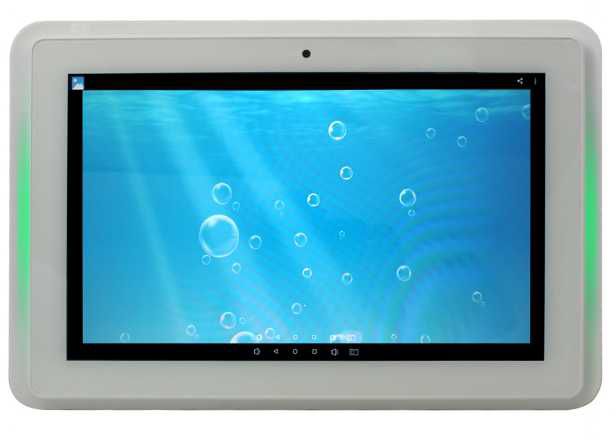
Firmware Tools:
ADB Driver Installation Software: Download
RKDevTool v2.92 flashing software: Download
RK3288 APIs and Help
API & SDK: Download
NFC Driver for Linux: Download
LED Control Guide: Download
LED API: Download
Turn off the LED permanently: Download
NFC API: Download
Using NFC for Text Input: Download The tablet must be connected to the PC, just as you would when flashing it. Run the 1122.bat script.
10-inch Android 10 RK3288 Firmware (174715):
Batch 2019/09 Android 10: Download
Batch 2020/10 Android 10: Download
Batch 2021/11 Android 10: Download
Batch 2022/11 Android 10: Download
13-inch Android 10 RK3288 Firmware (174716):
Batch 2019 Android 8: Download
15-inch Android 10 RK3288 Firmware (174717):
Batch 2019 Android 8: Download
Instructions for flashing:
- Install the "Release_DriverAssistant" driver.
- Launch the Android tool
- Connect the mini-USB port to the PC and the tablet, and plug in the power adapter
- You will now see an ADB device in the Android Tool
- Click the "Firmware" button under the "Upgrade Firmware" tab and select the Linux/Android image
- Then press the "Switch" button
- The tablet should now turn off the screen, and "Loader Device" should appear in the Android Tool; this takes about 30 seconds.
- Then press the "EraseFlash" button; this is only necessary if there are errors or when changing the system.
- Once the process is complete, you can click the "Upgrade" button, and the image will flash Linux/Android onto the system.
- The device will restart automatically after the update is complete.