Disable Windows Explorer
Windows 11 has its quirks, just like all versions of Windows. For example, Windows may display an error message in the taskbar when running certain programs, such as digital signage applications. But even just to improve security in general, it’s a good idea to disable File Explorer.
To do this, follow these steps:
Change startup options to disable Explorer at startup:
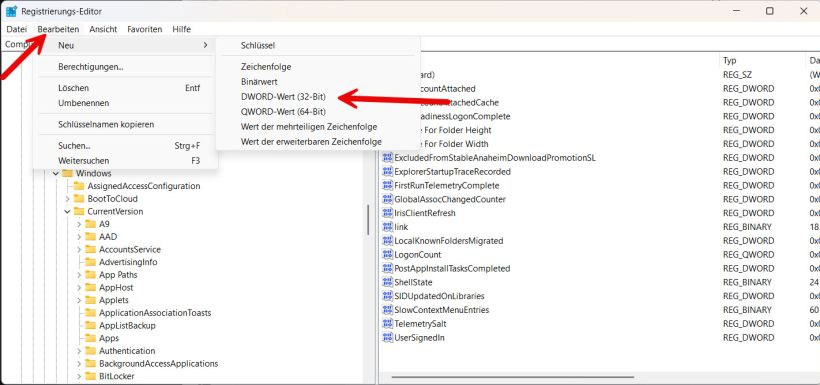
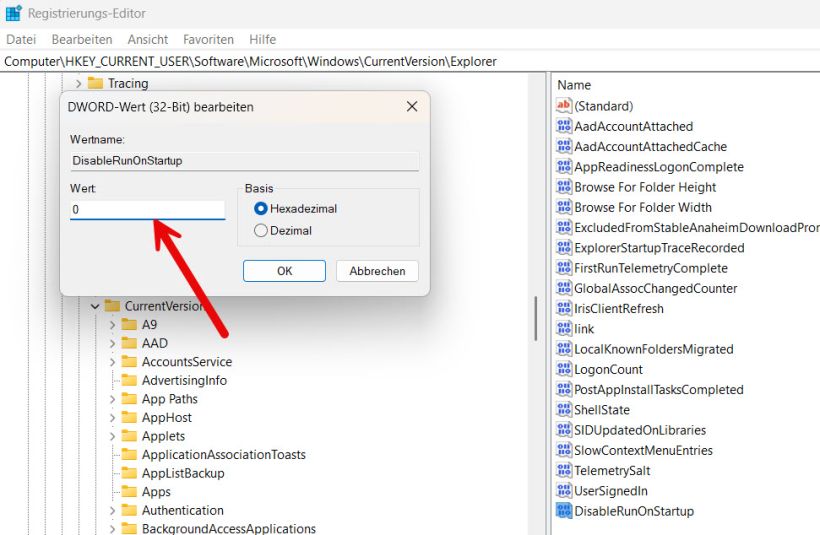
Open the Registry Editor (regedit.exe). Navigate to HKEY_CURRENT_USER\Software\Microsoft\Windows\CurrentVersion\Explorer. Create a new DWORD (32-bit) value named "DisableRunOnStartup" and set its value to 1. Restart the computer.
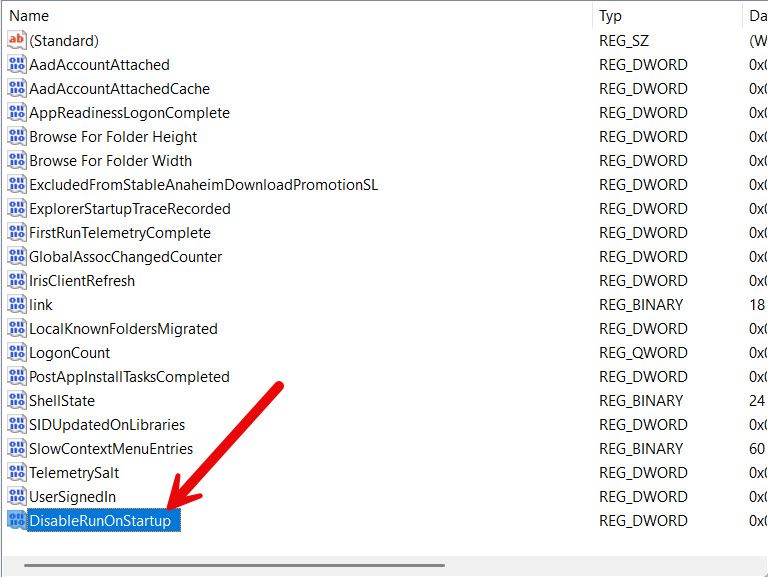
To disable it, set the number to 1.